Tool for Scheduling WordPress Posts
The tool for scheduling WordPress posts is only as good as its behavior on a bad day. The program covered here plans and publishes articles from a folder, and it is built to cope with slow servers, missed dates and incomplete files without losing a text. It waits a limited time for the site to answer, tries again later and reports what went wrong. That makes it a sensible choice for people who need their blog to keep publishing even when something hiccups.

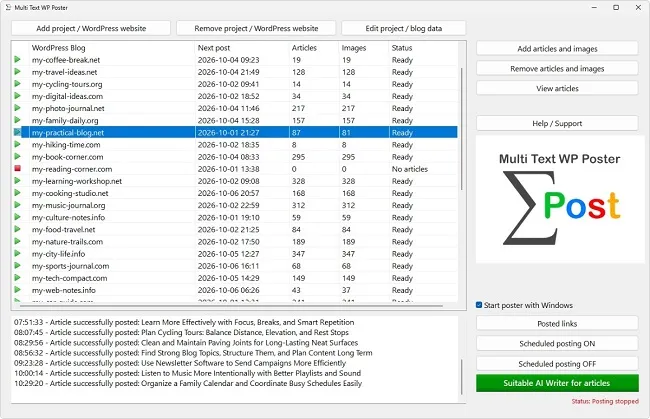
A schedule is only reliable once you know what your tool for scheduling WordPress posts does when somethinggoes wrong. Servers are sometimes slow, passwords get revoked, files contain errors. A good tool for scheduling WordPress posts absorbs this instead of silently giving up. This article helps you narrow down the cause, in the order in which it occurs most often: first the credentials, then waiting times and reachability, after that the article itself and finally the cases in which there is no error at all.
Narrow Down Problems in Your Tool for Scheduling WordPress Posts First
Before you change anything in your tool for scheduling WordPress posts, clarify which of the three possible pictures you are looking at. Either nothing appears at all, or an error message appears in the log, or the post is online but does not look as expected. Each picture has different causes, and if you mix them up, you search in the wrong place. The table assigns the most common signs.
| What you see | Probable cause | Next step |
|---|
| Date passed, no message | Automaton stopped, editing pause or computer off | Check the status line |
| "WordPress user name or application password is incorrect." | User name or application password does not match | Re-enter access in the project and test |
| "Website not reachable" | Address wrong, site offline or blocked | Open the address in the browser |
| Message about title or text | Error in the article format | Correct the file in the editor |
| Post online, message about the file | Post successful, follow-up on the file failed | Check the file name in the stock |
Work through the rows from top to bottom. The first two causes cost nothing and can be ruled out in a minute, which is why they come first. Only when neither applies is a look at the details worthwhile.
Credentials as the Most Common Cause
The tool for scheduling WordPress posts logs in through a user name and an application password that you generate in the WordPress profile. If something is wrong, the tool for scheduling WordPress posts only reports that the user name or application password is incorrect. It does not distinguish whether the name, the password or the permission is the reason. That sounds impractical but has an advantage: the error message tells an unauthorized person nothing about which part was right.
The list of usual suspects is short. The application password was deleted in the profile, for example during a cleanup. The user has lost their role and is no longer allowed to create posts. A space or line break was copied along when entering it. Or a security plugin blocks logins via the interface because it takes them for an attack. If you recently installed plugins or changed security settings, you will often find the cause there.
If details are missing entirely, the tool for scheduling WordPress posts points out specifically whether the address, the user name or the password is empty. That is the simplest case. For a real login failure, proceed like this: generate a new application password in the WordPress profile, enter it in the project settings and run the "Test access data" function. Only when the test passes is the access considered repaired. Delete the old password in the profile so that no legacy items are left lying around.
Why the Timeout Is 90 Seconds and What Happens Afterwards
Every step in which the tool for scheduling WordPress posts waits for a helper program or the site has a time limit of 90 seconds. This applies, for example, to uploading the images or creating the post. If the other side does not answer within that time, the tool for scheduling WordPress posts aborts the attempt. It does not give the article up, though, but sets the next date to about 30 minutes later and tries again then. The message reads, for example, "POST ERROR: WordPress website not reachable after 90 seconds (post upload). Next attempt in 30 minutes."
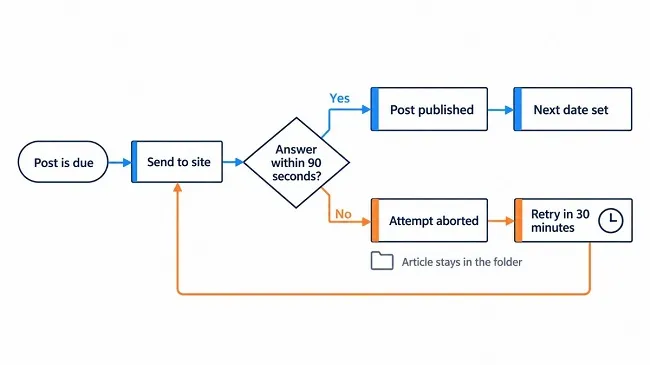
This behavior of the tool for scheduling WordPress posts is intended. Short outages of a server, an overloaded host or a sluggish connection often resolve themselves, and a retry after half an hour is usually enough. So you do not have to intervene if a timeout occurs once. Only when the same article fails several times in a row is a search for the cause worthwhile.
Typical reasons why this tool for scheduling WordPress posts runs into repeated timeouts are very large images on a slow line, a hosting plan with tight resources or a firewall that delays requests. In that case reduce the size of the images by using the width limit during import, and check whether the site itself responds quickly. If it is sluggish in the browser as well, the problem lies with the host and not with the tool for scheduling WordPress posts. Moving to a quieter time of day only helps if you can shift the date through the scatter of the times.
Site Not Reachable
If "Website not reachable!" appears, the tool for scheduling WordPress posts could not contact the address at all. First open it yourself in the browser. If the site does not load there, it is offline, in maintenance or the address has changed. If it loads normally, check the spelling in the project: a forgotten "https", a typo or an old address after a move are frequent cases.
Another candidate is moving the site to another domain or a new redirect from "http" to "https". Such changes affect the credentials too, because application passwords are tied to the installation. After a move it therefore makes sense to renew address and password together. Also consider your own computer's connection: if the network is down, every attempt fails, no matter how healthy the site is. Once the internet is back, the next attempt of the tool for scheduling WordPress posts takes place by itself.
If it turns out that the site only responds intermittently, you do not need to do anything. The schedule takes care of the retry. Contact your host if the outages accumulate, because a server that is repeatedly unreachable calls for an explanation from the party that runs it.
Errors in the Article Itself
If a text lacks the title or the content, the post cannot be created, and the tool for scheduling WordPress posts reports the error, for example "POST ERROR: TITLE is missing in" followed by the file. Such articles should actually already have been rejected during import. If they get this far anyway, they were mostly copied into the folder by hand or changed afterwards. Open the file in the editor and check the markers. After the correction, the article is tried again at the next date.
Images cause a second group of errors. If the image file is damaged, missing or was placed by hand in an unsuitable format, the upload fails. Then it helps to reassign the image in the import dialog of the tool for scheduling WordPress posts, because the conversion to a clean JPG takes place there.
One special case deserves particular attention. The message "POST SUCCESSFUL, BUT FILE ERROR" means that the post has appeared on the site but the tool for scheduling WordPress posts could not rename the file afterwards as intended. Check whether it is still in the stock without the marker "#-USED-#-". If so, rename it yourself or remove it, otherwise there is a danger that the same text appears a second time. A frequent cause is a file that was open in another program at that moment.
When There Is No Error at All
The explanation is often harmless. If the status line says "Status: Posting stopped", someone has switched off the timed control. If it says "Status: Paused (editing)", an editing window is still open, and as long as it stays open nothing is published. An empty stock is not a fault either: the tool for scheduling WordPress posts then reports "No articles" and waits for restocking without producing an error message.
The most common silent reason the tool for scheduling WordPress posts stays quiet is a switched-off or sleeping computer. This tool for scheduling WordPress posts only works while it is running. Dates that fall into an absence are redistributed at the next start, without several posts appearing at once. Anyone who needs fresh posts regularly therefore makes sure the computer is running at the scheduled times.
When your tool for scheduling WordPress posts is disrupted, note down what you changed each time, and change only one thing at a time. If you touch password, address and article at the same time, you do not know afterwards what helped, and you will not find a shortcut next time. Also note the time and the message before you correct anything, because the log shows an error only once per state. With these notes you recognize patterns, such as outages always at the same time of day, and can discuss them with your host.
Finally, a short checklist for emergencies, in the order of least effort:
- Read the status line: is the automaton running, or is it stopped or paused?
- Check the number of articles in the project list.
- Open the site in the browser and compare the address.
- Test the access in the project and, if needed, generate a new application password.
- Look through the log for a message about title, text, image or file.
- After a timeout, wait at least half an hour and one more attempt.
|



