AI Background Remover Free Download No Login
Photos lose their background in one click and keep clean edges.
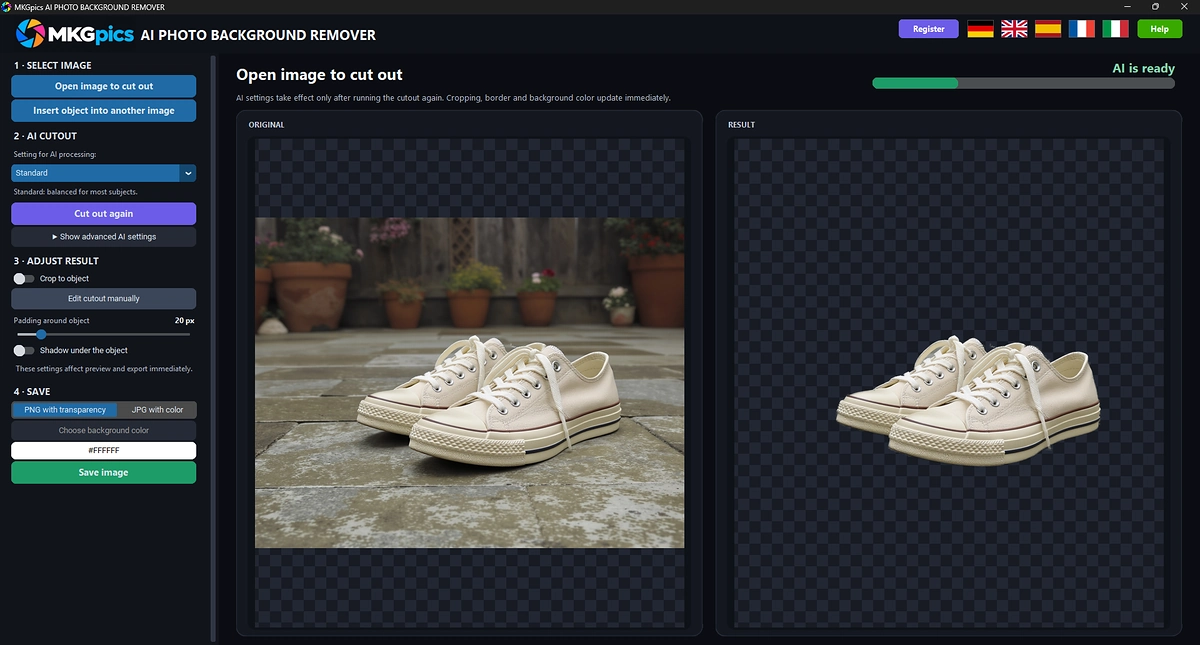
MKGpics AI PHOTO BACKGROUND REMOVER is an AI program for the PC. The photo is opened, one click starts the cutout, and the result is saved as PNG with transparency or as JPG with a background color. The cutout runs without cloud and without subscription.

The AI background remover finds the main subject, removes everything around it and shows the result as a preview. Mask editor, crop function and composite mode finish the job. Removing the background from an image with AI needs one click after the photo is open.
Functions of the AI Background Remover Program
- Open image dialog for PNG, JPG, JPEG, WebP and BMP files
- One click on Remove background starts the AI cutout
- Three profiles named Standard, Fine details and Clean edges
- Advanced AI settings for foreground and background sensitivity
- Edge refinement with alpha matting
- Contour shrinking that tightens the outline
- Cutout again with new settings after a change
- Crop to object with adjustable padding
- Background color picker with instant preview
- Export as PNG with transparency
- Export as JPG with the chosen background color
- Mask editor with a Keep brush and a Remove brush
- Brush size and brush hardness for the mask editor
- Dashed circle that shows the brush size
- Undo steps inside the mask editor
- Composite mode that places the object into another photo
- Position, size, rotation and opacity of the placed object
- Brightness, contrast, saturation and sharpness to match the new background
- Object moved with the left mouse button
- Protection against overwriting the original file
- Result names with the suffixes _cutout, _with_background and _composite
- Help page plus five interface languages
- Local Python AI libraries carry out the cutout on the PC
AI Remove Background from Image in Four Steps
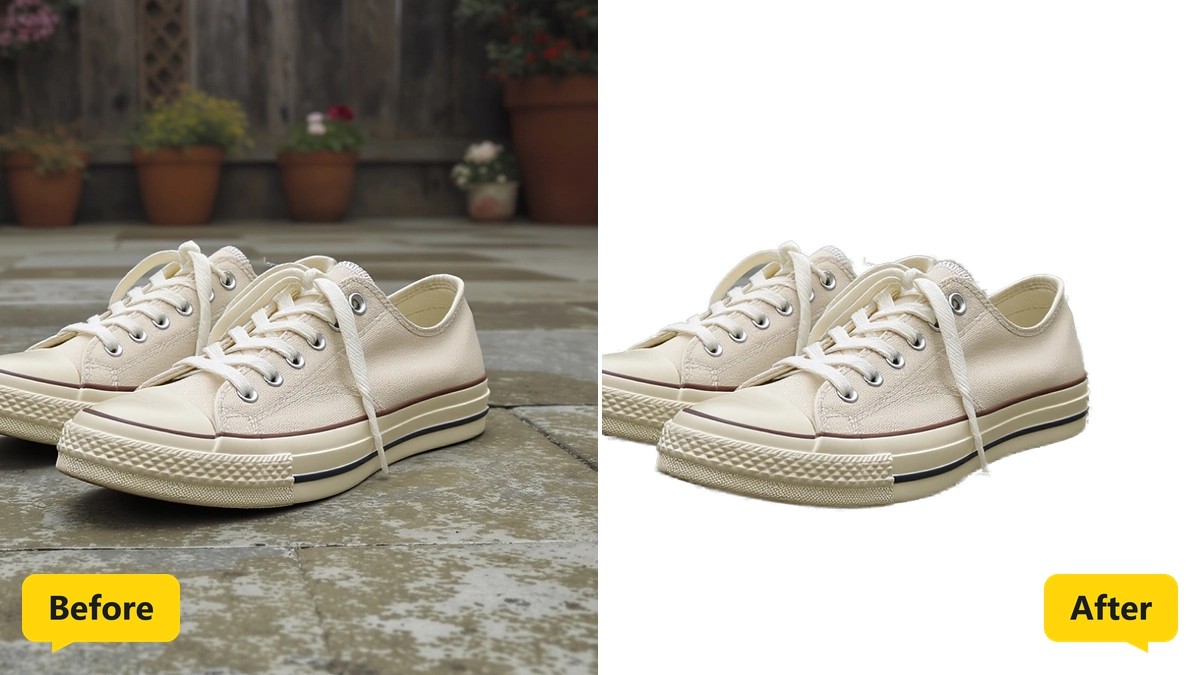
Four numbered steps lead from the photo to the saved file. Step one opens the picture from a file dialog that lists PNG, JPG, JPEG, WebP and BMP files. Files of these types need no preparation.
Step two starts the AI cutout. The profile comes first: Standard covers ordinary subjects, Fine details protects hair, fur and thin structures, and Clean edges serves products and clearly defined objects. The status line names the profile while the AI works.
Step three adjusts the result. Crop to object trims the canvas around the subject with adjustable padding, and the background color picker changes the backdrop at once. Cropping, padding and color react immediately, while new AI settings apply only with the next cutout.
» Free download and background removal for your photos
Step four saves the file. PNG keeps the transparency, so the cutout has a transparent background and drops into any layout. JPG fills the backdrop with the chosen color, and the preview shows the exact result before anything is saved.
The original file is protected, because saving over it is refused. Every source photo therefore stays intact.
How the AI Background Remover Handles Hair and Edges
The AI marks the subject and builds a mask with soft transitions at hairs and fine edges. It treats semi-transparent areas with care, so loose hair does not turn into a hard outline.
The advanced AI settings sit behind a show button. Foreground sensitivity decides how much of the subject stays, and background sensitivity decides how strongly the surroundings disappear. Stronger background settings remove more aggressively, softer ones keep more of the object.
Edge refinement with alpha matting softens the transition between subject and backdrop. Contour shrinking pulls the outline inward when a thin rim of the old background remains. The next cutout applies these settings, and the current result stays untouched until then.
Older cutout methods rely on color differences and need a plain backdrop. The AI recognizes the subject itself, so patterned backgrounds are handled as well.
What Decides the Quality of AI Remove Background from Image Results
Sharp photos with clear light give the cleanest outline. If subject and backdrop share nearly the same color, the AI needs more guidance, and switching the profile brings a better outline.
Products and other objects with firm outlines work best with Clean edges. Portraits and animals keep more structure with Fine details.
The mask editor corrects what remains. The Keep brush brings areas back, the Remove brush makes areas transparent, and brush size and hardness are adjustable. The dashed circle shows the brush size, undo reverses a stroke, and Apply sends the corrected mask to the main window.
The AI does the bulk of the work, and the brush only repairs small spots.
Jobs for the AI Background Remover from Shop to Poster
Shop owners use the AI background remover for product photos. Items appear on white or on a brand color, and PNG files with transparency fit every shop layout.
» AI Background Remover free download
Portraits and team photos need the face without the room behind it. To cut out a person from a photo, the Fine details profile keeps hair intact, and the composite mode then places the person in front of a new scene.
Composite mode opens a second photo as background. The object is moved with the left mouse button or positioned left, right, up and down. Size, rotation, opacity, brightness, contrast, saturation and sharpness adapt it to the new scene, and Save composite writes the file with the suffix _composite.
Designers use the PNG output as a transparent layer for posters, thumbnails and presentations. The same PNG goes into flyers, banners and web pages without a new run.
Questions and Answers about Background Removal
How do I remove the background from a photo with AI?
Open the photo, pick a profile and click Remove background. The AI cuts out the subject in one run, and the preview shows the result before saving.
How do I save an image with a transparent background?
Choose PNG as the export format. The cutout keeps its transparency, and the preview confirms it before saving.
Does the AI keep hair and fur?
The Fine details profile is made for hair, fur and thin structures, and the mask editor repairs remaining spots by hand.
Which image formats work?
The file dialog lists PNG, JPG, JPEG, WebP and BMP files, and results are saved as PNG with transparency or as JPG with a background color.
How do I put a cutout on a new background?
Composite mode opens a second photo, and the cutout is moved with the mouse, resized and matched with brightness, contrast and saturation.
Does the background removal work offline?
Yes, the cutout runs on the local PC and needs no internet connection.
|
|



