AI Object Remover No Account
Mark a distraction with the brush and watch it vanish from the picture.
MKGpics AI PHOTO OBJECT REMOVER is an AI program for the PC. Open a photo, paint over the unwanted spot and click Remove object. The AI fills the gap with matching background, and the result is saved as PNG, JPG or WebP, without cloud and without subscription.

This photo object remover works on holiday snaps, street scenes and product shots. Brush size stays adjustable, so a tiny speck and a whole bystander are marked with the same brush, and the AI object remover fills both gaps.
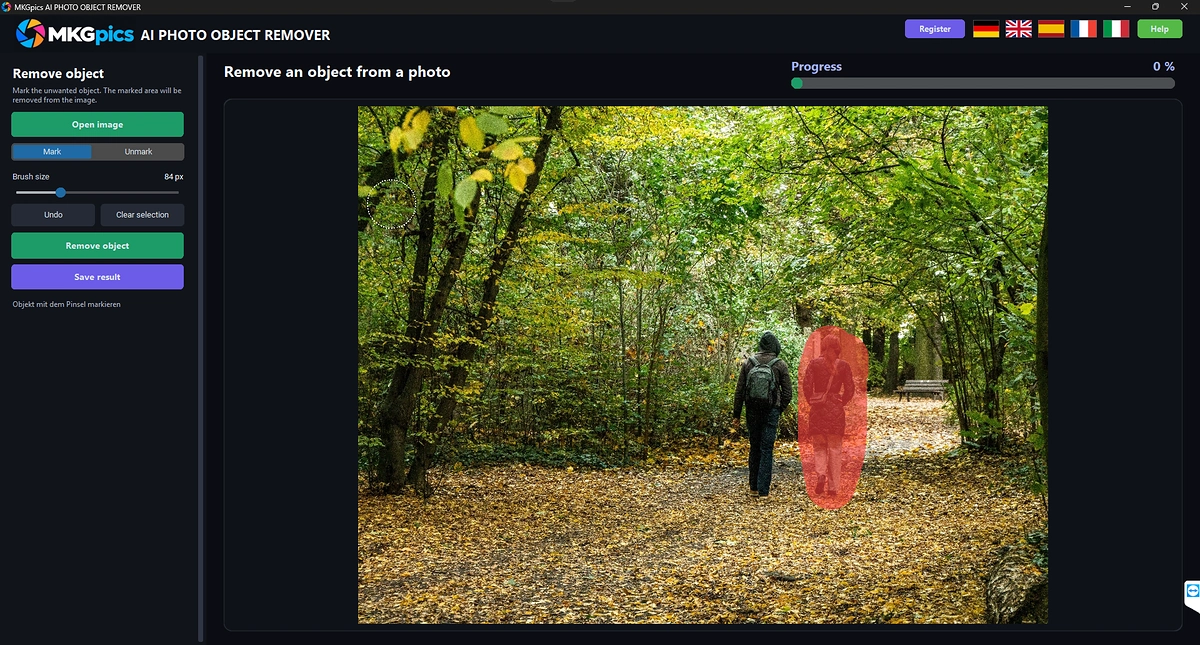
Functions of the AI Object Remover Program
- File dialog for PNG, JPG, JPEG, WebP and BMP pictures
- Ctrl+O shortcut for opening a photo
- Mark brush that paints a red overlay on the unwanted area
- Unmark brush that erases parts of the marking again
- Adjustable brush size with a dashed circle that follows the mouse
- Undo button for brush strokes
- Clear selection button that wipes the whole marking
- Remove object button that starts the AI
- Progress bar and status text during the calculation
- Preview that fits the window and keeps the picture proportions
- Cleaned photo stays as the base for the next marking
- Further objects removed in additional rounds on the same photo
- Hint text that guides every step
- Save result as PNG, JPG or WebP
- Result names with the suffix _object_removed
- Protection that refuses to overwrite the original photo
- Help page plus five interface languages
- Local Python AI libraries fill the gaps on the PC
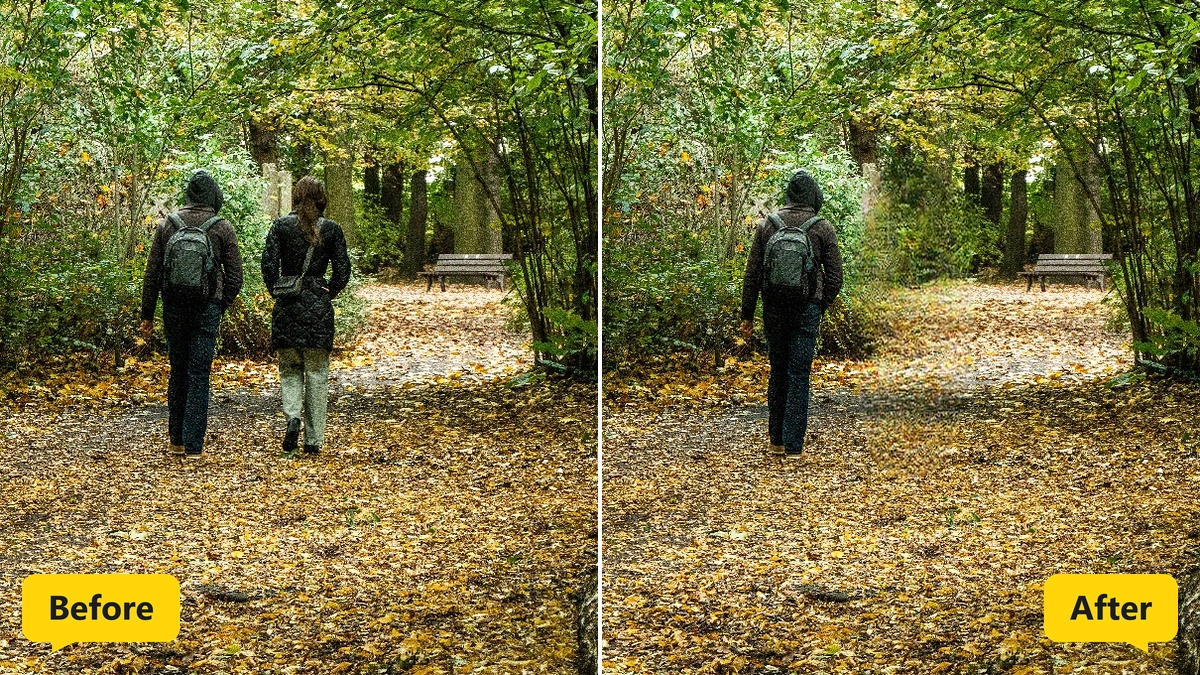
Marking and Erasing in the AI Object Remover Workflow
The photo comes in through Open image or the Ctrl+O shortcut, and PNG, JPG, JPEG, WebP and BMP files are accepted. Afterwards the hint asks for the object to be marked with the brush.
With Mark, a red overlay covers the unwanted spot, and Unmark erases parts of it again. The brush size shows as a dashed circle that follows the mouse. Undo takes back strokes, and Clear selection wipes the whole marking.
» Free download and object cleanup for your pictures
Then Remove object starts the AI. The progress bar fills, and the status text reports the finished removal.
The cleaned photo is saved as PNG, JPG or WebP with the suffix _object_removed. Saving over the original is refused.
How the AI Rebuilds the Background Behind a Marking
The marked area counts as missing. The AI looks at the pixels around it, such as sky, grass, wall or road, and fills the gap with matching texture and color. Soft edges blend the new patch into the photo.
The cleaned photo becomes the new base. Further objects are marked on it and removed in a second run, so a crowded scene is cleaned in rounds.
What Decides a Clean Fill in AI Object Remover Results
Plain backgrounds such as sky, wall and water give the cleanest fill, because there is little structure to rebuild.
Mark the object completely and include its shadow, because a leftover shadow reveals the removal.
In complex surroundings, mark the outline closely and check the preview after the run.
Very large objects leave soft texture behind. Removing them in two smaller steps and checking the preview between the steps gives a better match.
The AI invents new content. It matches the scene, but it does not recover what the camera never saw, so faces or text behind a removed object are not restored.
Jobs for the AI Object Remover from Holidays to Listings
Wires, signs, trash cans and parked cars spoil many holiday views, and a few strokes with the brush remove them.
» AI Object Remover free download
Tourists in the frame are a classic case. Marking each tourist lets the AI remove people from the photo, so the monument stands alone.
Pictures from events, markets and streets get a calm backdrop when passers-by behind the main subject are removed.
Real estate and shop pictures lose cables, stickers and clutter, which makes the room or product the only focus.
Questions and Answers about Removing Objects
How do I remove an object from a photo with AI?
Open the photo, paint over the object with the brush and click Remove object. The AI fills the gap, and Save result writes the cleaned photo.
Does AI remove people from a photo?
Yes, mark each person with the brush and click Remove object. The AI rebuilds the background behind them, and crowded scenes are cleaned in rounds.
Why does the removed area look blurry?
Very large objects leave soft texture. Mark a little wider, include the shadow and remove big objects in two smaller steps.
How do I remove several objects from one photo?
After a run the cleaned photo stays as the base. Mark the next object and click Remove object again.
Which file formats work?
The program opens PNG, JPG, JPEG, WebP and BMP photos and saves the result as PNG, JPG or WebP.
Does it work offline?
Yes, the object removal runs on the local PC and needs no internet connection.
|
|



