Bulk Photo Upscaler AI Free Download
Whole photo folders grow to twice or four times the size in one run.
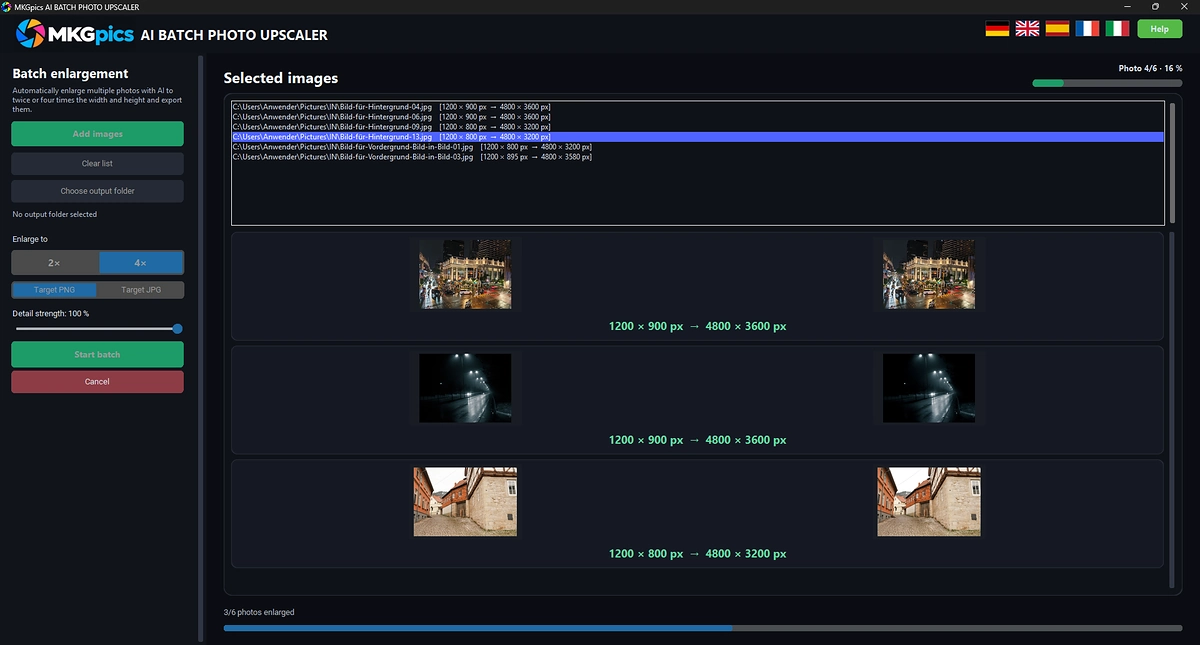
MKGpics AI BATCH PHOTO UPSCALER is an AI program for the PC. Photos go into a list, the factor 2× or 4× is picked, and one click on Start batch enlarges every image. Everything runs without cloud and without subscription.

Bulk Photo Upscaler AI turns small photos into large files for prints, posters and big screens. The batch AI photo upscaler enlarges the whole list and saves each result as a new file.
Functions of Bulk Photo Upscaler AI
- Add Images button with a file dialog for several photos at once
- Prompt to take over all pictures of the chosen folder
- Load PNG, JPG, JPEG, WebP, BMP and TIFF files
- Queue list showing the location of every photo
- Running tally of the selected pictures
- Clear list button for a new series
- Enlargement factor 2× or 4× as a two-way switch
- Adjustable detail strength that blends the AI result with a plain enlargement
- Output as PNG or as JPG
- Output folder chooser
- Protection against saving into the folder of the originals
- Start batch and Cancel buttons
- Upper progress bar with the count of enlarged photos
- Lower progress bar that follows the current picture
- Preview rows that pair each original with its enlarged copy
- Large photos processed in overlapping tiles
- Result names carry the suffix _upscaled
- Final report listing saved files and problems
- Help page and interface in five languages
- Local Python AI libraries enlarge the photos on the PC
Batch AI Photo Upscaler Step by Step
Several photos enter the list in one go through Add images. After a single photo is picked, a prompt asks whether all pictures of its folder should join, so a complete shoot enters the list with one confirmation. The batch AI photo upscaler works through this list from top to bottom.
Next come the factor 2× or 4×, the target format PNG or JPG and the output folder. The folder of the originals is blocked, so no source photo is overwritten.
» Free download and enlarging of many photos at once
A click on Start batch sets the run going. The upper bar counts finished photos, the lower bar follows the current picture, and a preview row pairs each original with its enlarged copy.
Cancel ends the run after the current photo, and everything saved so far stays. Each file keeps its name plus _upscaled, and a final report lists saved files and problems.
How Bulk Photo Upscaler AI Rebuilds Detail
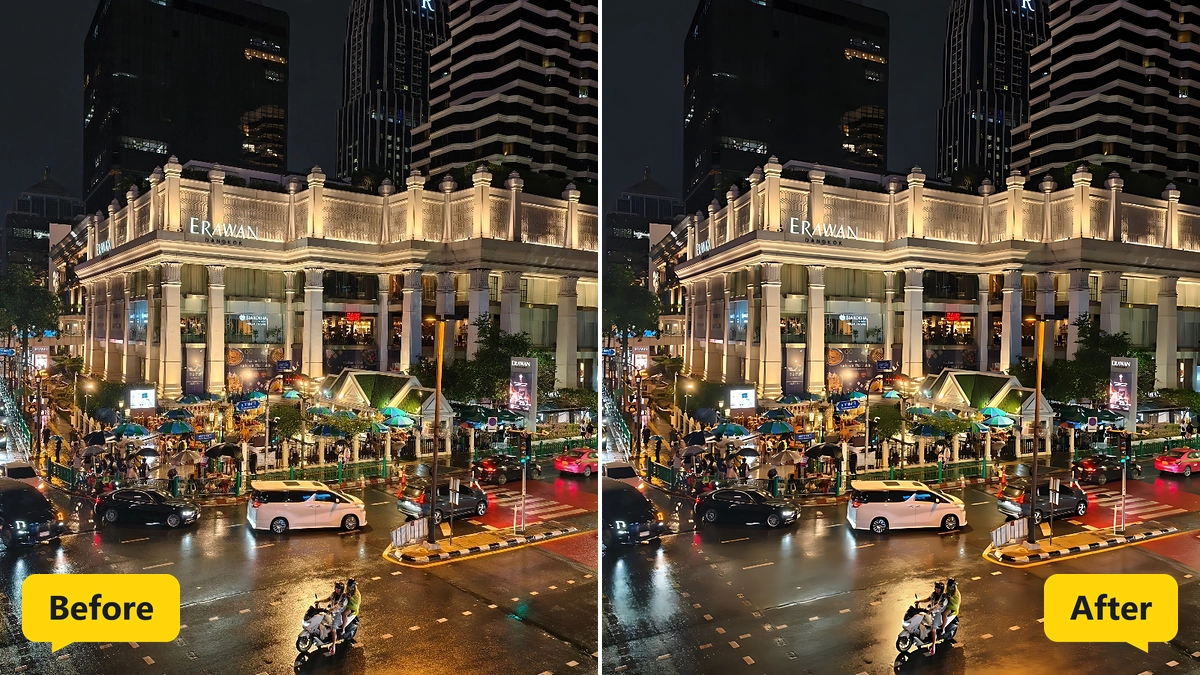
Plain stretching makes edges soft and blocky. The AI rebuilds edges, textures and fine lines instead, so a 4× result keeps crisp outlines.
Photos of any size are processed in overlapping sections and merged afterwards, so large images show no seams.
Detail strength decides how much of the AI result enters the final photo. Full strength delivers the pure AI result, lower settings blend it with a plain enlargement for a calmer look. The batch AI photo upscaler applies the chosen strength to every photo of the run.
Extremely large originals are held to a maximum output size, so the factor shrinks for them instead of producing an oversized file.
Factor and Strength Decide the Result
Sharp source photos give the best 4× result. Blurry or heavily compressed originals grow, but the AI does not know details that the camera never recorded.
The factor 2× fits web galleries and moderate prints, 4× fits posters and large screens. Four times the width and height creates sixteen times as many pixels as the original, so file sizes grow fast.
With bulk photo upscaler AI the preview rows show whether the chosen factor and strength match the photo type.
Where Batch AI Photo Upscaler Runs Pay Off
Old smartphone photos, scans and web images are too small for a poster. The batch AI photo upscaler enlarges the whole archive in one night.
» Bulk Photo Upscaler AI free download
Online shops need product photos in a minimum size, and designers need larger source files for layouts. Bulk Photo Upscaler AI covers both jobs with one list.
Photographers who crop heavily get pixels back, and archivists prepare old collections for large prints. The batch AI photo upscaler serves both.
Questions and Answers about Batch Upscaling
How do I upscale many photos at once?
Add the photos or a whole folder, pick 2× or 4×, choose the target format and the output folder, then click Start batch. The AI enlarges every image in the list.
What is the difference between 2× and 4×?
The factor 2× doubles width and height, and 4× quadruples them. Four times the width and height means sixteen times as many pixels.
Do the original photos stay unchanged?
Yes, results are saved as new files with the suffix _upscaled, and the folder of the originals is blocked as the output folder.
Does AI upscaling look better than normal resizing?
Normal resizing stretches pixels and softens edges, while the AI rebuilds edges and fine structure for a sharper result.
Which image formats are supported?
The queue accepts PNG, JPG, JPEG, WebP, BMP and TIFF photos, and the enlarged copies are written as PNG or JPG.
Does the upscaling work offline?
Yes, the enlargement runs on the local PC and needs no internet connection.
|



