Batch Colorize Black and White Images AI for PC No Account
Whole stacks of gray or faded photos receive natural colors in one run.
MKGpics AI BATCH PHOTO COLORIZER runs as an AI program on the PC. Black and white or faded photos are added to a list, a quality profile and an output format are chosen, and one click on Start batch colors every image. Nothing runs in the cloud and nothing needs a subscription.

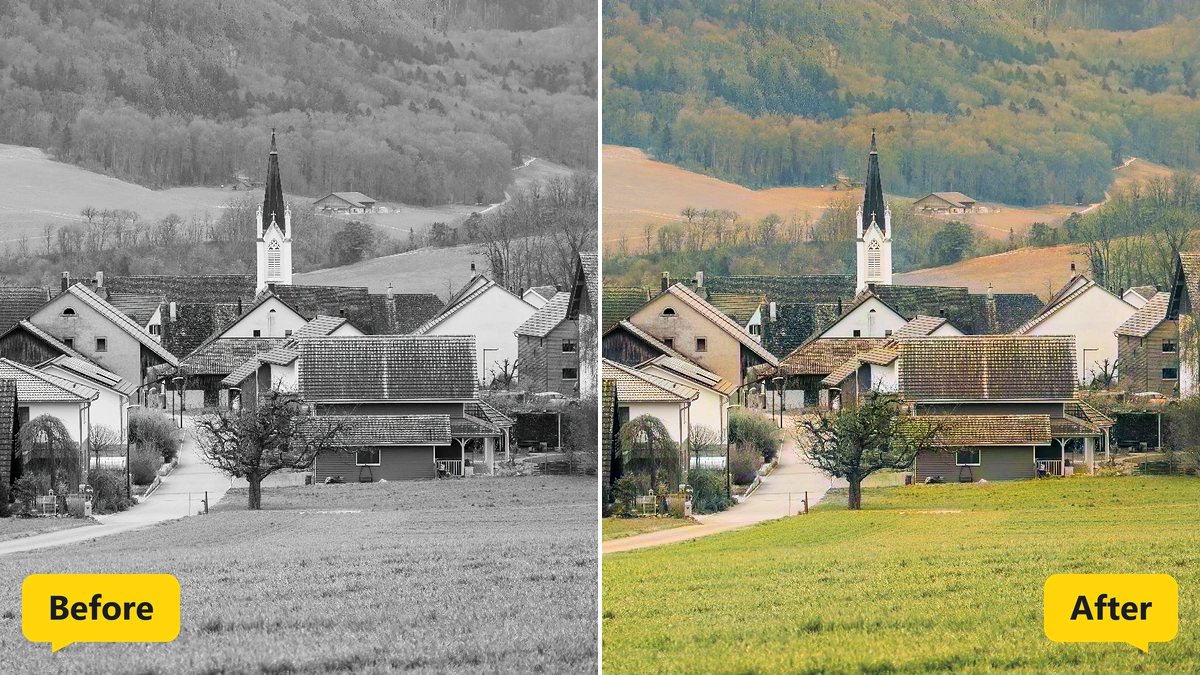
Batch Colorize Black and White Images AI means that a long list of gray photos is colored without any manual work. The batch AI image colorizer keeps the brightness and the detail of each original and adds only color.
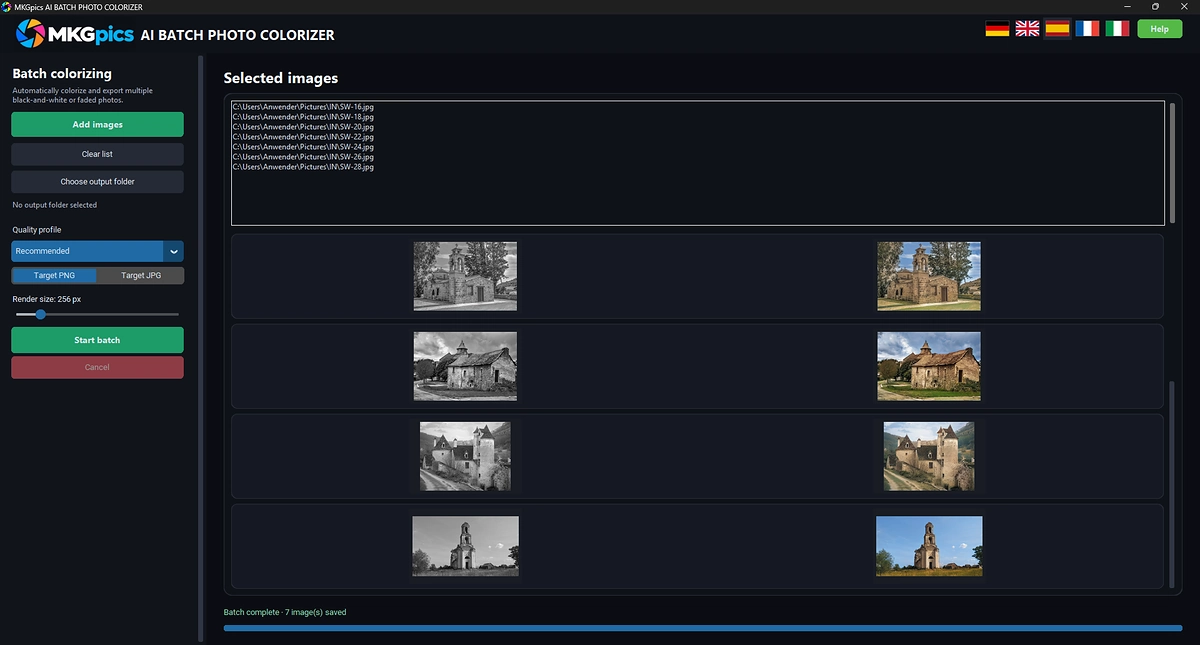
Functions of Batch Colorize Black and White Images AI
- Add images from a file dialog or load a whole folder after a confirmation
- Image formats PNG, JPG, JPEG, WebP, BMP and TIFF
- List with the path of every selected image
- Counter with the number of images in the list
- Clear list button for a fresh start
- Preview rows with the original next to the colorized result
- Three quality profiles named Recommended, High quality and Highest quality
- Adjustable render size shown in pixels
- Output as PNG or as JPG
- Choice of the output folder
- Original folder refused as an output target
- Start batch and Cancel buttons
- Progress bar with a counter such as 8/25 photos colorized
- Summary message with saved photos and a list of errors
- Brightness and detail of the original photo stay untouched
- File names with the suffix _colorized
- Help and interface in five languages
- Python AI libraries on the local PC do the coloring
Batch AI Image Colorizer from Load to Save
The list is filled through Add images, which opens the file dialog. Choosing a single photo triggers a question whether all images from the same folder should join the list, which loads a whole archive with one click. The batch AI image colorizer works through exactly this list.
The quality profile comes next, followed by the output format PNG or JPG and the output folder. The program refuses the folder of the originals as a target, so the source photos stay as they are.
» Free download and coloring of whole photo folders
A click on Start batch begins the run. The progress bar and a counter report how many photos are colorized, and each finished photo appears in a preview row with the original on the left and the result on the right.
If the run has to end early, Cancel stops it after the current photo, and the finished photos stay saved. The same list and the same profile apply to every entry.
Every file gets the original name plus _colorized. At the end a message lists the saved photos and any errors, and the Clear list button prepares the next collection.
Quality Profiles and Render Size Explained
Three profiles are available: Recommended, High quality and Highest quality. Choosing a profile sets the render size, which decides how finely the AI places color, and the size is adjustable afterwards.
The Recommended profile fits quick runs over large collections. High quality and Highest quality take longer per photo, but color transitions in faces, skies and fabrics look smoother.
The colors are the best guess of the AI. Skin, sky, grass and wood come out plausible, while uniforms, cars or clothing sometimes get colors that differ from the real ones. The batch AI image colorizer delivers a natural look, not a historical record.
Faded color photos work as well, because the AI starts from the brightness of the image. Sharp originals with good contrast give the cleanest result.
How the AI Adds Color to Every Photo
After the click, each photo is converted to gray, and the AI predicts the colors for it. The predicted colors are then merged with the original brightness, so fine detail and sharpness are not touched.
The batch AI image colorizer repeats this for every entry, from the first file to the last. Each result is saved at once, so files appear in the output folder while the run is still going.
Jobs for a Batch AI Image Colorizer from Albums to Archives
Family albums, school photos, wedding pictures and travel prints from past decades get their colors when the batch AI image colorizer works through the whole box in one run.
» Batch Colorize Black and White Images AI free download
Local history groups, museums and genealogy researchers prepare exhibition images and family trees. Batch Colorize Black and White Images AI turns a scanned folder into a colorful series.
Authors, bloggers and video makers add color to historical stills before publishing.
Questions and Answers about Batch Colorizing
How do I colorize many black and white photos at once?
Add the photos or a whole folder, choose a quality profile, an output format and an output folder, then click Start batch. The AI colors every image in the list.
Does the original photo stay unchanged?
Yes, results are saved as new files with the suffix _colorized, and the folder of the originals is refused as the output folder.
Which quality profile should I pick?
Recommended is the fast choice for large collections. High quality and Highest quality give smoother color transitions and take longer per photo.
Are the colors historically accurate?
No, the AI chooses plausible colors from the image content. Skin, sky and vegetation look natural, other objects deviate from reality.
Which file formats does the program load and save?
PNG, JPG, JPEG, WebP, BMP and TIFF files load into the list, and results are saved as PNG or JPG.
Does the colorizing work offline?
Yes, all coloring takes place on the local PC without any internet connection.
|
|



