WordPress Automatic Posting and What Happens Behind the Scenes When a Post Goes Live
WordPress automatic posting means that a program publishes your articles at set times without you clicking anything. The tool behind it runs quietly in the background, watches a clock and, when a date comes up, takes the next text from its folder and sends it to your site. It is meant for people who would rather spend their hours writing than uploading. Everything it does follows a fixed sequence, which makes the results predictable: the same checks, the same steps and the same kind of post every time.

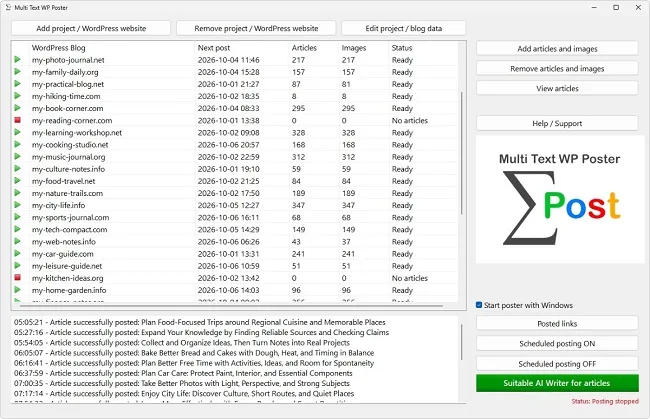
Anyone who uses WordPress automatic posting for the first time will sooner or later ask: what actually happens when a new article appears on the site at ten past three in the morning? WordPress automatic posting is no magic, just a fixed sequence of checks and transfers. If you know it, you also understand the messages in the log and can judge why a post sometimes comes later or fails to appear. This walkthrough follows a single post through WordPress automatic posting, from the first schedule check to the cleanup afterwards. The processes described come from Multi Text WP Poster.
How WordPress Automatic Posting Watches the Schedule in the Background
Each project has a stored date at which the next post is due. Every second, WordPress automatic posting checks whether this point in time has passed for any of the projects. As long as nothing is due, nothing happens. That costs practically no computing power, because only one date is compared per second.
Once the date is reached, WordPress automatic posting starts processing that project. If there are several projects, they take their turn one after another, not at the same time. Even an immediate post that you trigger by hand joins the queue and never runs in parallel with a scheduled post. That prevents two processes from getting in each other's way.
Important for operation: closing the main window does not end WordPress automatic posting. The program then keeps running in the background and points this out with a message. You can end it via the menu item "Exit". So you can safely click the window away, but should not assume that this stops everything. Conversely, anyone who wants to halt WordPress automatic posting deliberately uses the "Scheduled posting OFF" button. The status line then reads "Status: Posting stopped".
Steps One to Three Check Everything Before Anything Is Sent
Before a single byte travels to your site, WordPress automatic posting checks that everything needed is there. First it looks at the credentials: address, user name and application password must be stored in the project. If one of these is missing, the run stops with a corresponding message, before any article has been touched.
Then it looks for the article for this date. If there is none, that is not an error. The folder is simply empty, nothing appears in the log, and the status in the overview reads "No articles". As soon as you put new texts in, things continue. Which article is chosen next depends on the order you set: either by the file's date, with the oldest one first, or at random.
Third, the mandatory fields of the selected article are checked. Without a title and without text nothing is posted. There is no exception for the title: if it is missing, an error message appears with the name of the affected file. All other fields, such as tags, category or meta details, may stay empty. An article with a broken header therefore cannot accidentally end up as an empty post on your site, and the message tells you where to make the correction.
Steps Four and Five Prepare the Images and Assemble the Text
If the article comes with images, WordPress automatic posting does not work with your originals but with copies. The copies get a new, search-engine-friendly file name, while the originals in the project folder stay unchanged. How these names come about and what role the two image types play is described in a separate article about images.
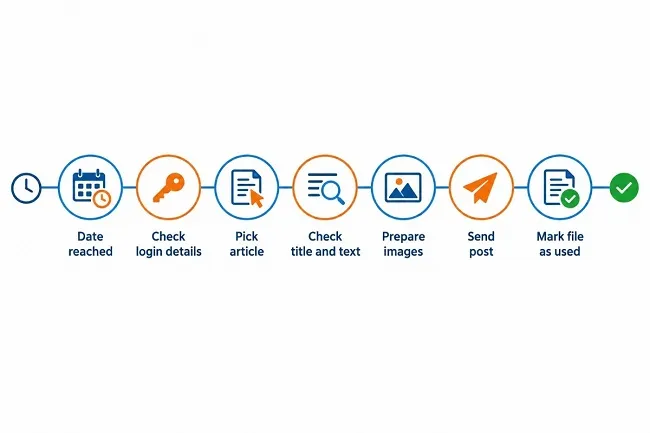
In WordPress automatic posting, the image that is meant to appear in the middle of the text is uploaded separately first. WordPress reports back the address where the file lives. With this address the program builds the image section and inserts it at a suitable point in the article text, roughly in the middle and at a spot where the HTML code is not damaged by it. The finished text is prepared for transfer in a temporary file.
Only when all the preparation has worked does the actual post follow. If something goes wrong with the images, for example because a file is unreadable, the process ends at that point. So nothing goes online half finished. You find either the complete post or none at all, but never one with a missing image at the spot where there should be one.
Steps Six and Seven Send the Post and Confirm It
Now WordPress automatic posting sends all the details bundled to your site: title, text, tags, category, where applicable the desired address of the post, the meta details and the featured image. The status passed along is "published". The post therefore appears immediately, with no intermediate step via a draft or via WordPress's own scheduling.
Then WordPress automatic posting waits for the answer. It comes back as a short result file and, on success, contains among other things the address of the new post. Only if this feedback is positive does the post count as posted. The server is given a period of 90 seconds for this. If the site has not answered by then, the attempt is aborted and rescheduled for later.
For your oversight, this means: a post only counts once WordPress has confirmed it. WordPress automatic posting does not rely on it "probably having worked". If something stalls during confirmation, for example with wrong credentials, the message says that the user name or application password is incorrect. That the details may be right and the site is merely too slow to answer is covered by the timeout as a message of its own.
Cleaning Up and Setting the Next Date after the Post
With the confirmation in hand, WordPress automatic posting does several things in a fixed order. First, the address of the new post is entered in a central list that you can view later via "Posted links". Then the article file receives its prefix #-USED-#- and no longer counts as part of the stock. Finally the program calculates the next date according to the set interval and saves it.
The case where renaming the file fails is interesting, for example because it is open in another program at that moment. The post is already online at this point. The program therefore reports "POST SUCCESSFUL, BUT FILE ERROR" and moves the date forward anyway. That rules out it publishing the same article again every second. You should then rename the file by hand or take it out of the folder, otherwise it would be eligible again on the next pass.
At the end, the overview updates its numbers. The "Articles" column drops by one, the "Next post" column shows the new date. Anyone who just wants to check whether the automaton is alive finds everything needed there at a glance.
What Happens to the Date When Something Goes Wrong
Not every run of WordPress automatic posting ends successfully. It is therefore important to know how the date behaves in WordPress automatic posting depending on the outcome. The following table shows the main cases. Causes and remedies for individual error messages are covered in the article on troubleshooting.
| Outcome | What happens to the date |
|---|
| Post published successfully | Next date after the set interval |
| Site does not respond within 90 seconds | New attempt after 30 minutes, the article stays in the folder |
| No article in the folder | No error message, things continue as soon as texts are there |
| Post online, file cannot be renamed | Date is moved forward, message about the file error |
The 30-minute wait after a timeout in WordPress automatic posting has a good reason. A server that is overloaded or being serviced at the moment usually recovers quickly. An immediate second attempt would only put additional load on it. The article itself stays untouched in the folder, so it neither loses its place in the order nor gets lost.
Missed Dates When the Computer Was Off
WordPress automatic posting that only works while the computer is running has to cope with gaps. The program does so deliberately with restraint. At startup it checks all projects whose date has meanwhile passed. It does not catch up on the missed posts in one go, though, but sets a new date for each affected project that lies within its own interval. Immediately after startup, nothing is published.
With several overdue projects, it also distributes the new dates so that they preferably do not fall into the same minute. A blog with a daily rhythm is therefore not flooded with a batch of stragglers. That is in the readers' interest and protects your site from suddenly looking like a mass upload.
If WordPress automatic posting starts together with the computer, it additionally waits eight minutes before it begins posting. That lets the computer boot up in peace before the first posting is even considered. The status line points out this waiting time. Together, both measures ensure that restarts and outages do not trigger chaotic posts in WordPress automatic posting. Anyone who wants a project served without gaps should keep the computer running at the scheduled times, because skipped dates are not made up retroactively.
|



